This is a personal memo for reference on Git commands.
Git Setup
git config --global user.name "Your Name"
git config --global user.email "you@example.com"
git --version
First, you should configure your Git identity, which is used to associate your commits with your GitHub account.
Start a New Repository
mkdir my-repo
cd my-repo
git init
git init initializes a new Git repository in the current directory, creating a .git/ folder to track version history and changes.
Tracking and Committing Files
git status               # Show changed files
git add <file>           # Stage file
git commit -m "Message"  # Commit staged files
git commit -a            # Stage and commit modified files
git push                 # Push local commits to the remote repository
Understanding how our local workspace interacts with the remote repository is important. Below are some Git commands related to that interaction:
git remote -v              # Show configured remotes
git remote show origin     # Show details of the 'origin' remote
git fetch                  # Download changes from remote (no merge)
git pull                   # Fetch and merge remote changes
git push                   # Push local commits to the remote repository
The diagram below illustrates my understanding of these commands.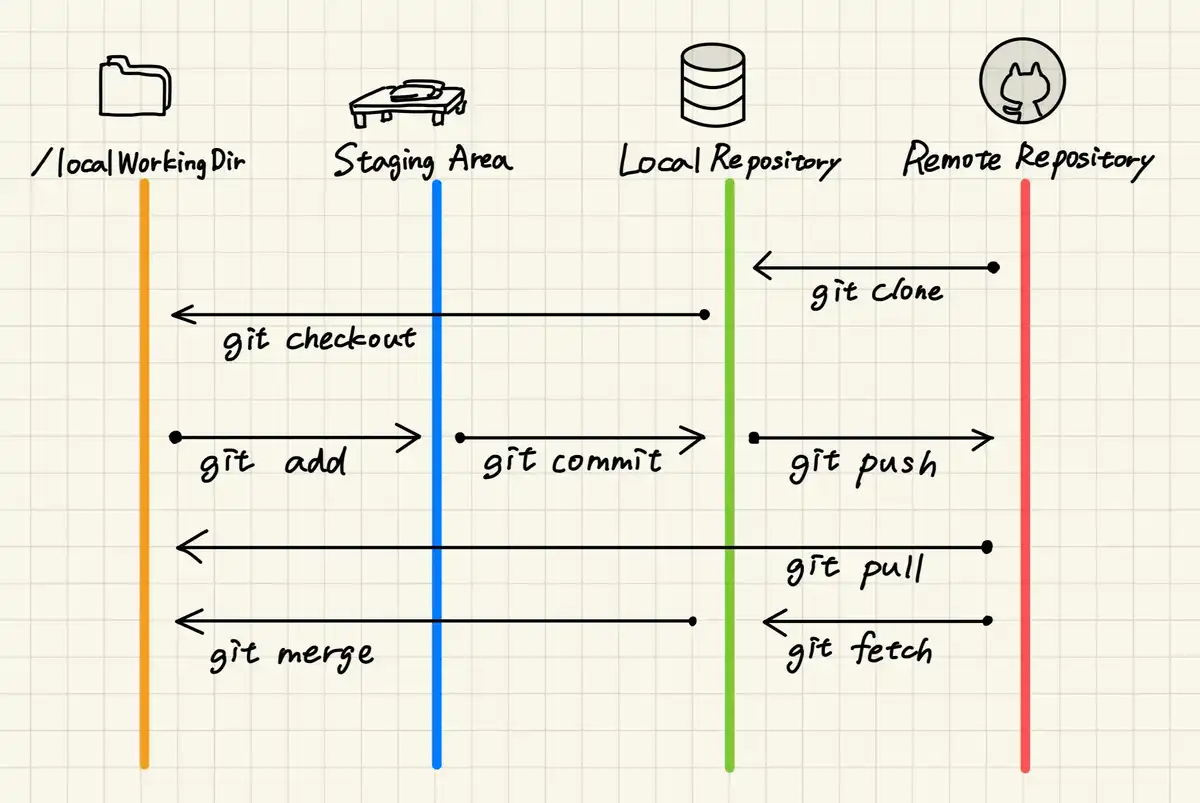
Review Changes
git diff                 # Show unstaged changes
git diff --staged        # Show staged changes
git log                  # View commit history
git log -p               # Show diffs per commit
git log --oneline --graph  # Visual history
Amend or Revert
git commit --amend       # Modify last commit
git revert HEAD          # Create new commit that undoes latest
git reset                # Unstage changes
git checkout <file>      # Restore file from last commit
git checkout can change to another branch: git checkout branch-name
File Operations
git rm <file>                    # Delete tracked file
git mv old.py new.py            # Rename/move file
git add -p                      # Interactively stage parts of files
Branching
git branch                      # List branches
git branch new-feature         # Create branch
git checkout new-feature       # Switch to branch
git checkout -b better-feature # Create and switch
git merge feature              # Merge into current branch
git branch -d old-branch       # Delete local branch
Rebase & Squash
git rebase main                # Rebase onto main
git rebase -i main             # Interactive rebase (squash, fixup)
git commit --amend             # Modify last commit
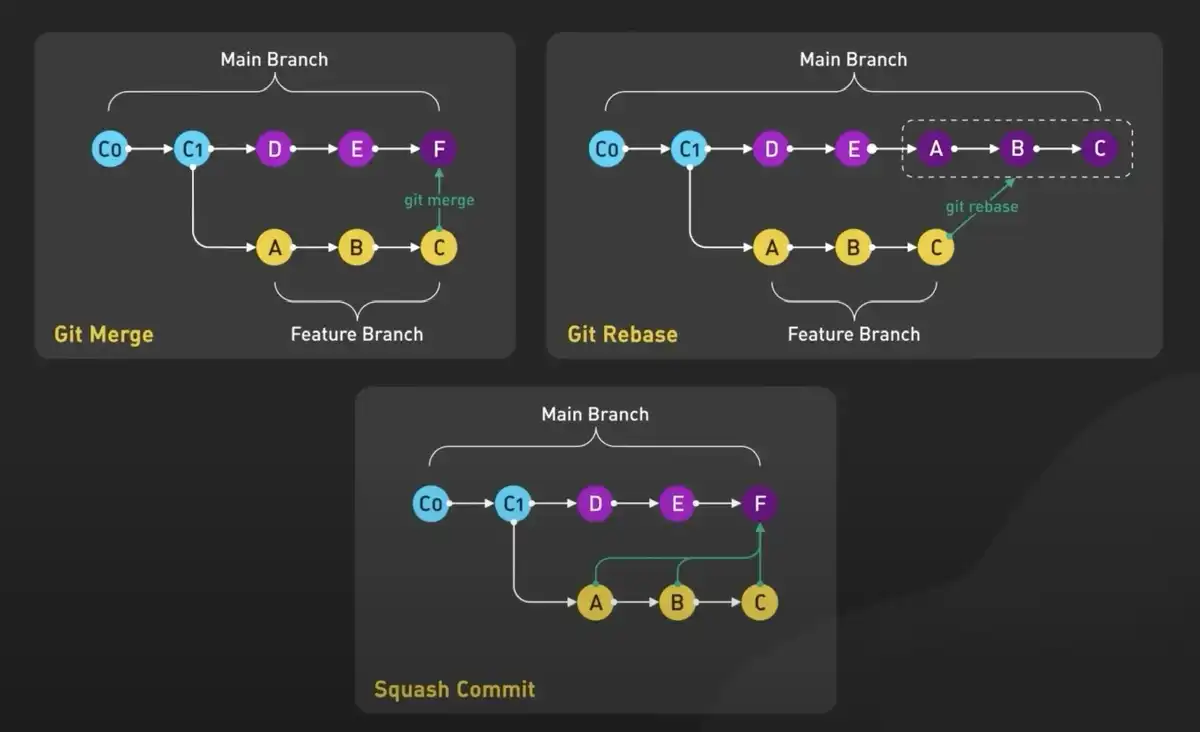
You can find some online resources that explain rebase, merge, and squash graphically. Those three styles were very confusing to me 🥺
I’ll continue updating this memo as I deepen my understanding of Git—thanks for reading!